¶ Orders
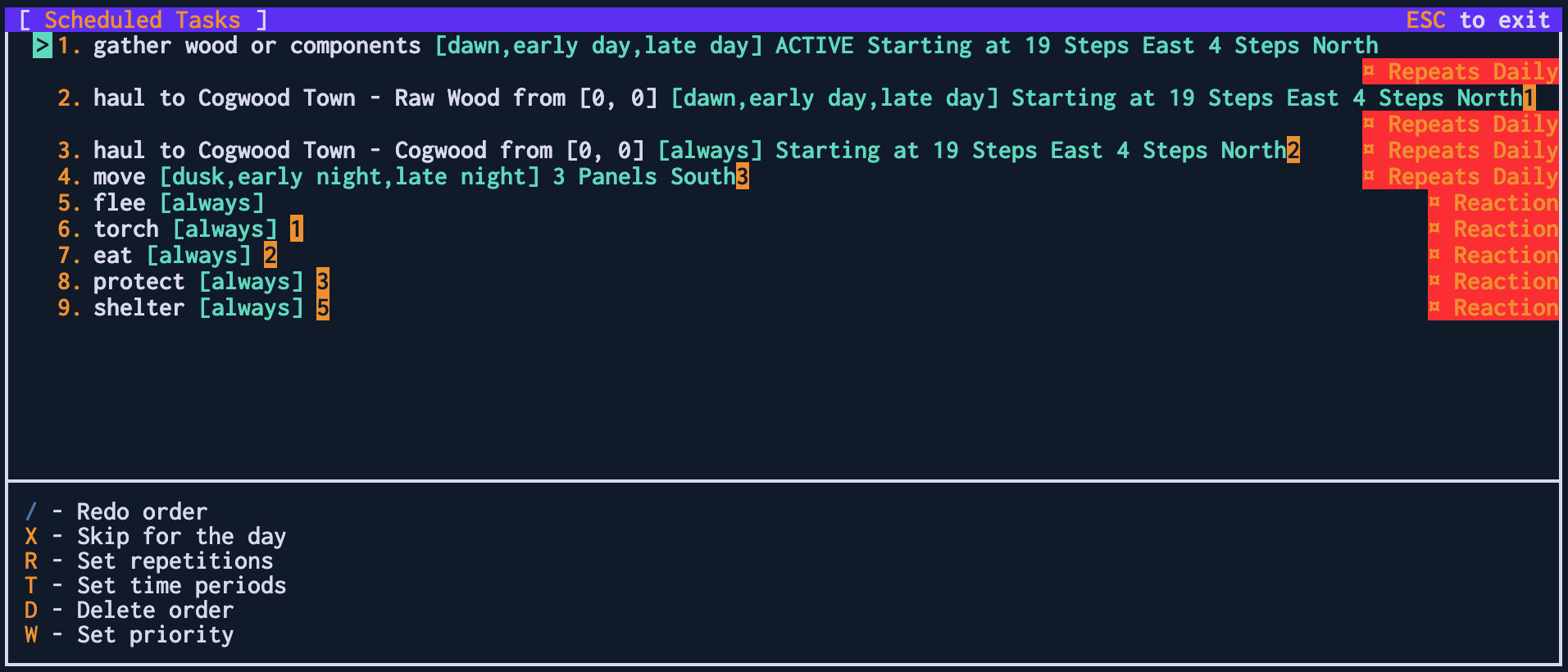
Orders are how you do pretty much everything in the game. Every action you tell a character make is translated into an order. Orders are queued by the character and carried out in order. You can rearrange these orders, make a character carry them out once a day, and more in the Scheduler.
If your character needs items or tools in order to carry out the order, they will check for them in whatever stockpiles they have access to - whether that be personal ones, or ones belonging to organisations they belong to
¶ Scheduler
¶ Deleting orders
Orders can be deleted by selecting the order in the list and pressing d. The only orders which cannot be deleted are the special reaction orders.
¶ Time periods
Orders can be set to only take place at certain times of day. You may want to consider instructing characters to move somewhere safe at dusk, and to only leave safe spaces during daylight hours.
¶ Recurring orders
Orders can be set to happen once per day or to only happen once.
¶ Changing order priority
The order that orders are executed can be changed manually. Orders with the same priority will be executed in a random order.
¶ Regular orders
¶ Move
Press m to move. In general, characters will try to move as efficiently as they can towards the target square. More detail can be found at movement
¶ Talk
Press j to talk. Talking is not strictly an order - it cannot be scheduled and it does not cost action points. If you are stood next to a character, you can talk directly to them instead of to the whole location. When you do this, you will be able to see the conversation with that character by pressing c. You will be able to communicate over any distance in this way - the in game reason for this is that the characters have brainchip implants which enable long range communication over radio.
¶ Wait
The wait order just instructs your character to stand in place for 1200 ticks. It's a utility order for when you want to stand still, for example if you want to sort out the storage of a specific square.
¶ Fetch
Press s to collect items from stockpiles your character has access to. You can also fetch items by walking to them, and then picking them up from the inventory screen by pressing i. More detail on stockpiles can be found at stockpiles
¶ Drop Goods
Press d and then select a stockpile to drop goods. Your character will drop all items in his inventory which the stockpile is set to hold - so if the stockpile is only set to hold Cogs for example, the character will only drop all of the cogs they are holding.
¶ Haul
Press h and then select a stockpile to haul goods. Your character will transport goods from the ground back to the stockpile. Characters will haul one item at a time, which is often much less efficient than picking up the items and moving them manually. Taking goods from a stockpile your character doesn't belong to is considered a crime. When hauling, characters will only move items that the stockpile is set to hold - so if the stockpile is only set to hold Raw Wood for example, the character will only pick up raw wood and not any brush or component parts it encounters.
¶ Gather brush
Press g and then gather brush to gather brush. Brush is the simplest material which is used to make charcoal, the most basic type of wall and door, and axes (which are needed to produce wood). No tool is needed to gather brush.
¶ Gather wood or components
Press g and then gather wood or components to gather wood or components from nearby plants. Plants drop a number of components which can be refined and later used to make all sorts of useful or beautiful items. A character needs an axe equipped to be able to carry out this order - as with all orders, they will check stockpiles for an axe if they don't have one equipped.
¶ Farm Plot
Press g and then farm plot to clear farm plots. Farm plots can only be built near a water source, and a character must be holding a plough to be able to clear a farm plot. More information can be found at farming
¶ Plant Seeds
Press g and then plant seeds to plant seeds. Seeds can only be planted on cleared farm plots.
¶ Tend Plants
Press g and then tend plants to tend plants. Any plants can be tended but it will only adjust the yield for farmable plants. You need a hoe to tend plants.
¶ Gather fruit & vegetables
Press g and then gather fruit & vegetables to gather fruit or vegetables. Characters will only attempt to gather food ingredients which have been tended to full ripeness. No tool is needed to gather fruit or vegetables.
¶ Grown brush
Press g and then gather grown brush to gather grown brush. Use this order to ensure characters only cut down fully grown brush - this will give you a much higher yield compared to gathering brush that has not yet fully ripened yet and is useful when you have set up farms and want a steady supply of brush.
¶ Gather Minerals
Press g and then gather minerals to gather minerals. You will need a pickaxe equipped to gather them. Minerals are found underground in mines.
¶ Fuel Light
Press g and then fuel light to fuel a light source construction such as a fire pit. Your character will go and fetch charcoal to fuel any lights you select. Lights keep Skyshrouds away after dark.
¶ Repair Constructions
Press g and then repair constructions to repair constructions. Each construction can be repaired once per day. The construction will be repaired an amount matching the repair rate. Doors and walls are only effective once they've passed a certain threshold of health. You need a hammer equipped to repair a door.
¶ Damage Constructions
Press g and then damage constructions to damage constructions. Each construction can be damaged once per day. The construction will be damaged the same amount as it can be repaired, meaning in a siege the defenders can ensure their walls are never broken. A sledgehammer is needed to damage constructions. Note this is considered a crime.
¶ Haul Furniture
Press g and then haul furniture to haul furniture. Furniture is hauled to the location the character is stood on when beginning this order. A furniture mover is needed to haul furniture. When furniture is moved, the owner is assigned as the person that moved it. If you want to change ownership of a bed, the character you wish to be the new owner must haul the furniture. Note it is considered a crime to move furniture belonging to a character you are not in a matching organisation with.
¶ Disown Furniture
Press g and then disown furniture to disown furniture. A furniture mover is needed to disown furniture. When furniture is disowned, the old owner of the furniture is erased. This is useful if you want to allow people outside of your organisation to take some furniture, or if you want to free up a bed for a new character to spawn
¶ Shut Locks
Press g and then shut locks to shut locks. A key is needed to shut most locks, but not wooden barricades. Locks can be installed on storage as well as doors.
¶ Open Locks
Press g and then open locks to shut locks. A key is needed to open most locks, but not wooden barricades.
¶ Paint Constructions
Press p and then paint constructions to paint constructions. A paintbrush is needed to paint. You will be given the option to create some pixel art or write some words. If your character is holding paint during this step they will be given access to the paint's colour to use during the creation process.
¶ Paint Storage
Storage can be painted as well as constructions. Press p and then paint storage to paint storage. A paintbrush is needed to paint.
¶ Paint Furniture
Furniture can be painted as well as constructions. Press p and then paint furniture to paint furniture. A paintbrush is needed to paint.
¶ Fight
Press f and then select a character or animal to fight them. Your character will attempt to kill whatever it is instructed to fight. The character will take no heed of their own health unless their flee order is switched on (see flee order below). Characters will not persue other characters across panels with the fight order.
¶ Reaction orders
There are six special 'reaction' orders which every character is assigned with. These will trigger once certain conditions are met and are explained in detail below. All reaction orders can be given time periods, so for example your characters will only attempt to eat at night.
¶ Flee
The flee order needs three conditions to be fulfilled to trigger.
1. The order will only trigger if it is on. A player can toggle it between on and off by pressing o.
2. The character has health points equal to or lower than the number shown under E. By default, this is 10. This number can be adjusted by pressing e.
3. At least one flee panel must be defined. These can be adjusted by pressing p
When all of these conditions are fulfilled, the character will ignore all other orders and attempt to move to the closest flee panel. This can be useful if you have a character exploring - if they are attacked by a dangerous creature they will attempt to save themselves by running back to a predefined base.
Note that once a character has successfully fled to their assigned panel, they will not take any further actions (including other reaction orders) until the flee order has been switched off.
¶ Torch
The torch order is triggered at night or underground if the order is toggled to on. By default, the torch order triggers across all panels. It can be limited to certain named panels if they are added to the order by pressing p. By default the torch order is on.
¶ Eat
The eat order is triggered when a character's hunger gets lower than the trigger value defined by h. The character will then stop what they are doing and eat some food, if some is stored on a stockpile in the panel they are currently stood in. They will not attempt to get food from stockpiles in other panels.
¶ Protect
The protect order is triggered when a character or animal other than a Skyshroud commits a crime against something the character is set to defend on their current panel. When this happens, the character will attack the offending character or animal and attempt to kill them, not stopping until the criminal is dead unless their flee condition is met. Note if they are set to flee to the panel they are currently stood on, they will simply stop attacking instead of fleeing. You will need to turn off their flee order to regain control of the character. If you have guard characters, it is recommended to keep them well fed and turn their flee order off.
If the character is set to protect a character (defined using c), they will attack any criminal that commits violence against that character or moves any of that character's furniture
If the character is set to protect an organisation (defined using g), they will attack any criminal that commits violence against that organisation's members or takes items from the organisation's stockpiles.
If the character is set to protect a panel (defined using p), they will attack any criminal that commits property damage against any constructions on that panel (damaging or destroying constructions. Painting them is not considered a crime.)
Organisations can protect panels. An admin will need to select protected panels from the organisation screen.
¶ Shelter
The shelter order stops a character from leaving a safe area at night. A safe area is defined as an area which cannot be reached by animals from the edge of the screen. By default the shelter order is enabled.
¶ The Idle order
When a character has no more orders for the day, they will begin to be idle. When they are idle, they will walk around the panel looking for interesting things to do. These are:
- Plants to admire
- Books to read
- Furniture to rest on
- Painted storage or furniture to look at
If there are no interesting things to do, they will stand in place until they are given an order.